 Whatsable






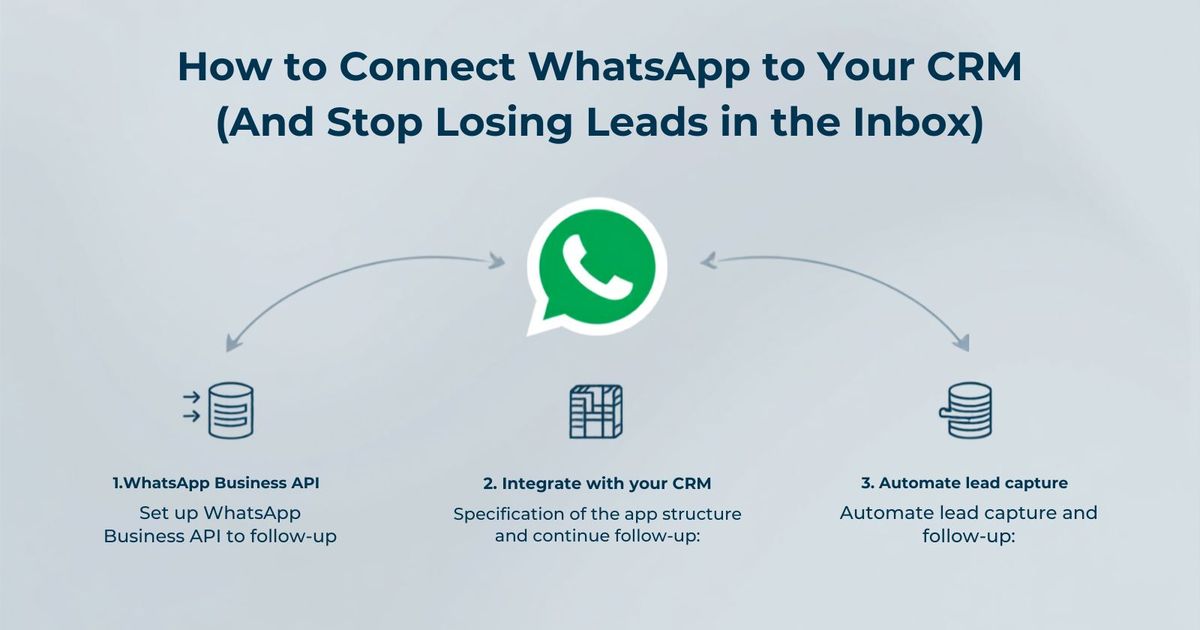
How to Connect WhatsApp to Your CRM (And Stop Losing Leads in the Inbox)
You're closing deals over WhatsApp. Your customers love it because it's fast, personal, and they actually reply. But every one of those conversations is trapped on someone's phone, invisible to the rest of your team and completely disconnected from the CRM you run your business in.
That's the gap. In 2026, it's the difference between a lead that gets followed up and a lead that quietly disappears.
Here's how to close it, so messages fire automatically from your data and every reply lands right on the customer's record.
Why a Shared WhatsApp Inbox Isn't Enough Anymore
Most WhatsApp tools stop at the inbox. You get a shared team inbox, a few agents log in, and that's it. Nothing flows back to your system of record.
So you end up doing the worst kind of work:
- Copy-pasting conversations into the CRM by hand
- Manually checking the phone to see if a lead replied
- Sending the same "just following up" message one contact at a time
- Losing track of who said what, and when
The inbox was a good first step. But your CRM is where the actual work lives: the pipeline, the statuses, the follow-up tasks. If WhatsApp doesn't talk to it, you're running two systems and reconciling them by hand.
The fix isn't another inbox. It's making WhatsApp a native part of the CRM your team already lives in.
What "Connected" Actually Looks Like
A real WhatsApp to CRM connection is two-way.
Outbound: your CRM sends the message. A record changes and WhatsApp fires automatically. A lead's status flips to "Qualified" and they get a welcome message. An appointment is booked and the reminder goes out. An order ships and the customer knows, without anyone lifting a finger.
Inbound: WhatsApp updates your CRM. A new contact messages you and a record is created instantly, which is perfect for Facebook and Instagram Lead Ads. Every message, sent or received, is logged onto the matching record by phone number. Your team replies from inside the CRM itself, with no separate app and no lost context.
The payoff is a complete conversation history sitting right next to the customer's details, plus follow-ups that trigger themselves. Nothing falls through the cracks because nothing depends on someone remembering.
The Three Ways to Connect WhatsApp to a CRM
There's no single button that works for every CRM. Pick the path that matches yours.
1. A native marketplace app (the best experience)
Some CRMs have a purpose-built WhatsApp integration you install straight from their marketplace. It's two-way out of the box, conversations log automatically, and you get a live chat view inside the CRM.
This is exactly what Monday.com users get with Whatsable today. You install "Whatsable" from the Monday marketplace, authorize it, and you're building automations in minutes. No code, no developer.
2. A direct Cloud API connection
If your CRM has an open API, you can connect it to the Official WhatsApp Cloud API directly. It's the most flexible route and handles CRMs that don't have a native app yet. It takes a little more setup, which is exactly what our free onboarding call is for.
3. An automation bridge
Middleware-style connectors can relay events between WhatsApp and almost any CRM. It's the fastest way to stand something up when there's no native app, and a solid stopgap while you scale.
Whichever path you take, one thing should never change. It has to run on the Official WhatsApp Cloud API, from a Meta Tech Provider. Anything else is a grey-market workaround that can get your number banned.
The Setup, Step by Step
Here's the pattern using the live, marketplace-approved Monday.com integration as the example. The same four moves apply to any CRM.
- Install and authorize. In the Monday marketplace, search "Whatsable," click Install, then Authorize. You'll see "Connected successfully to monday." Both steps matter, so don't skip the authorize.
- Create your message template. This is the format WhatsApp will send. Meta usually approves it in under a minute, and it then shows up right inside your workflow builder.
- Map your fields. Point your name column to the name variable and your phone number column to the recipient. Hit Publish.
- Wire your triggers. Build the automation from the board's plus icon. Outbound: "When status changes to Qualified, send a WhatsApp message." Inbound: "When a new number messages, create an item," or "log every message to the matching item."
Send a test message, watch it land on the record, and you're live. No code touched the whole way.
What to Look For in a 2026 WhatsApp to CRM Solution
Before you commit to any tool, run it through this checklist:
- Official WhatsApp Cloud API, not an unofficial workaround
- Meta Tech Provider status behind the vendor
- True two-way sync that sends and logs replies, not just blasts
- An in-CRM conversation view so your team never switches to a separate inbox
- No-code setup, with real onboarding help and not just docs
If a tool misses any of these, you're buying another inbox, not a connection.
Get It Set Up for Free
You don't have to figure this out alone. Every Whatsable customer gets a free setup call, even on the free trial. We'll connect your CRM to WhatsApp with you, live, and have your first automation running before we hang up.
Your customers are already on WhatsApp. Your team is already in your CRM. Connect the two, and the follow-ups start taking care of themselves.
Try it free. No credit card. Book your setup call and we'll wire it up together.
 Elias Navarro