 Whatsable







TL;DR:
- Make.com WhatsApp scenarios automate messaging workflows by connecting WhatsApp Business Cloud with other apps. They follow a structured, multi-step process that includes receiving messages, processing them, and sending replies, with error handling and logging. Task-oriented AI automation remains allowed, but general-purpose chatbots are banned starting in January 2026.
A Make.com WhatsApp scenario is an automated multi-step workflow that connects WhatsApp Business Cloud with other apps through Meta’s API to send, receive, and process messages without manual effort. These workflows are the standard industry term for what many teams call “WhatsApp automations,” and the distinction matters: a true scenario chains multiple modules together, while a simple automation fires a single action. The make.com whatsapp scenario examples covered here range from AI-powered lead replies to calendar reminders, giving you a concrete starting point for any business communication goal.
1. Top Make.com WhatsApp scenario examples for businesses
The most practical Make.com WhatsApp scenarios follow a 4–5 step structure: receive an incoming message via webhook, process it with AI or a static template, send a reply, and optionally log or schedule a follow-up. That structure covers the majority of real business needs.
AI-powered lead response
Integrating GPT-o3-mini with Make.com and WhatsApp delivers personalized lead replies in under 10 seconds at roughly £0.0001 per response. That cost is negligible compared to the revenue risk of a slow reply. The scenario pulls the incoming message, sends it to the AI module, and fires a tailored response back to the lead’s WhatsApp number. A Google Sheets module at the end logs each interaction automatically.

Booking confirmation and auto-reply
A WhatsApp Business Cloud trigger fires when a customer sends a keyword like “book” or “appointment.” Make.com reads the message, checks availability in Google Calendar, and sends a confirmation message with the time slot. No human needs to touch the conversation.
Consecutive message handling with Datastore
Rapid-fire messages from one contact can break a basic scenario. Appending consecutive messages in Make.com’s Datastore module using a delimiter preserves the full conversation context before processing. This prevents the scenario from acting on an incomplete message and producing a confusing reply.
Google Calendar reminder workflow
A scheduled Make.com scenario runs every morning, queries Google Calendar for the day’s events, and sends each attendee a WhatsApp reminder. The message includes the event title, time, and a link. Teams that use this report fewer no-shows without adding any manual work.
Interaction logging and CRM sync
Every inbound WhatsApp message triggers a module that writes the sender’s number, message text, and timestamp to a Google Sheet or a CRM via HTTP request. Sales teams use this to track response times and identify which leads went cold.
Pro Tip: Build the logging module into every scenario from day one. Retroactively adding it after a scenario has run for weeks means you lose historical data that is hard to reconstruct.
Make.com also supports multiple sending methods including HTTP requests with API keys, JSON transformations, and native WhatsApp Cloud modules. That flexibility lets you match the technical approach to your team’s skill level.
2. How to build multi-step WhatsApp scenarios in Make.com
Building a reliable multi-step workflow requires a clean setup before you write a single module. Skipping steps here causes errors that are frustrating to debug later.
- Install the WhatsApp Business Cloud app. The module will not appear in the Make.com scenario builder until you install the app from the Make marketplace. This is the single most common reason teams cannot find the module.
- Configure the Meta webhook. In your Meta developer dashboard, paste the Make.com webhook URL and set a verify token. Copy the token character by character. A single invisible space causes a validation failure.
- Verify the token precisely. Token mismatches between Meta and Make.com are the leading cause of webhook errors. Paste into a plain text editor first to strip any hidden formatting before copying into Meta.
- Test in Development mode. Meta’s Development mode limits message delivery to pre-added test numbers. Use this phase to confirm your modules fire correctly before requesting Live mode access.
- Switch to Live mode. Sending messages to real customers requires Advanced Access approval from Meta. Submit your business verification documents early because the review process can take several days.
- Add routers and filters. A Router module splits the scenario into branches based on message content. A filter on each branch ensures only the right messages trigger the right reply. This is what separates a basic auto-reply from a true multi-step workflow.
- Set error handlers on every module. Use Make.com’s “Break” or “Ignore” error directives on modules that call external APIs. Without them, a single API timeout stops the entire scenario.
Pro Tip: Test each module individually before connecting them. Run the webhook trigger alone, confirm the data structure, then add the next module. This cuts debugging time significantly.
For a deeper look at connecting WhatsApp to Make, Whatsable’s integration guide covers the full setup process with screenshots.
3. Common errors in Make.com WhatsApp workflows and how to fix them
Error handling in a Make.com WhatsApp workflow is not optional. Production scenarios fail without it, and the failures are often silent.
- Webhook token mismatch. The verify token you enter in Meta must match the token in Make.com exactly. Invisible characters from copy-pasting are the most common culprit. Always paste into Notepad or a plain text editor first, then copy from there into both platforms.
- Module not visible in scenario builder. The WhatsApp Business Cloud module only appears after you install the app from the Make marketplace. If you cannot find it, check your installed apps list before troubleshooting anything else.
- Development mode blocking real users. Meta’s Development mode only delivers messages to test numbers you have manually added. Moving to Live mode requires formal business verification and Advanced Access approval. Start that process early in your project timeline.
- Consecutive messages losing context. When a contact sends two messages in quick succession, the scenario may process only the first one. Using Datastore to append messages with a delimiter before processing solves this reliably.
- API permission errors. Some WhatsApp Business API features require specific permissions granted during Meta’s app review. Check your app’s permission list in the Meta developer console if a module returns a 403 error.
Stabilizing the webhook verification process with Meta’s platform before layering complex multi-step logic is the single most important step in any Make.com WhatsApp integration. Teams that skip this end up debugging the foundation while the rest of the scenario sits idle.
Meta banned general-purpose AI chatbots on WhatsApp Business API starting in january 2026, but task-oriented automation remains fully permitted. Scenarios that send specific replies, confirmations, or reminders are compliant. This distinction is critical when designing your scenario logic.
4. Choosing the right WhatsApp automation strategy for your scenario
Different scenario types suit different business goals. The table below compares the most common approaches by key feature categories.
| Scenario type | Best use case | Complexity | Cost per message | Technical skill needed |
|---|---|---|---|---|
| Static auto-reply | FAQ responses, business hours | Low | Very low | Beginner |
| AI-powered lead response | Sales qualification, personalized replies | Medium | Very low (AI token cost) | Intermediate |
| Booking confirmation | Appointment-based businesses | Medium | Very low | Intermediate |
| CRM logging workflow | Sales teams, lead tracking | Medium | None | Intermediate |
| Multi-step reminder sequence | Event follow-ups, onboarding | High | Low | Advanced |
| Consecutive message handler | Support bots, context-aware replies | High | Low | Advanced |
Static auto-replies work well for businesses that receive repetitive questions and want a fast, zero-cost solution. AI-powered scenarios suit sales teams that need personalized replies at scale without hiring more staff. Multi-step reminder sequences are best for businesses with structured customer journeys like onboarding or event management.
Budget is rarely the deciding factor. The AI-powered lead response scenario costs roughly £0.0001 per reply. The real cost is setup time and ongoing maintenance, which scales with scenario complexity. Start with the simplest scenario that solves your most pressing communication problem, then add complexity once the foundation is stable.
For a full list of messages worth automating, Whatsable breaks down the highest-impact message types by business category.
Key takeaways
Make.com WhatsApp scenarios deliver the most value when they follow a proven module structure, handle errors explicitly, and stay compliant with Meta’s API rules.
| Point | Details |
|---|---|
| Install the app first | The WhatsApp Business Cloud module only appears after installing it from the Make marketplace. |
| Fix the webhook before adding logic | Token mismatches block all scenario activity; resolve verification before building further. |
| Use Datastore for rapid messages | Appending consecutive messages with a delimiter preserves context and prevents broken replies. |
| Start simple, then add complexity | Build the simplest working scenario first, then layer in AI, routing, and logging modules. |
| Stay compliant with Meta’s 2026 rules | Task-oriented automation is permitted; general-purpose AI chatbots on WhatsApp Business API are not. |
What I’ve learned building Make.com WhatsApp scenarios
The first time I connected WhatsApp Business Cloud to Make.com, I spent two hours chasing a webhook error that turned out to be a single invisible space in the verify token. That experience taught me something the documentation does not say clearly: Meta’s developer platform is unforgiving about exact string matching, and most integration problems start there, not in Make.com.
The second thing I learned is that scenario design should follow communication goals, not technical possibilities. Teams get excited about multi-step workflows and build elaborate branching logic before they have confirmed the basic webhook fires correctly. The result is a fragile scenario that breaks in production and takes days to debug. Build the simplest version first. Confirm it works with real messages. Then add a router, then a filter, then an AI module.
The third insight is about Meta’s 2026 policy change. The ban on general-purpose AI chatbots caught several teams off guard. Task-oriented automation is still fully permitted, but the distinction requires deliberate scenario design. Every reply your scenario sends should map to a specific business action, not open-ended conversation. That constraint actually produces better scenarios because it forces clarity about what the automation is supposed to accomplish.
Community templates on the Make.com platform are underused. Most teams build from scratch when a working template already exists for their use case. Start with a template, understand how it works, then customize it. That approach cuts setup time and exposes you to module patterns you would not have thought of independently.
— Axel
Whatsable and Make.com WhatsApp automation
Businesses that want to move faster on WhatsApp automation without managing Meta’s API setup directly have a practical option in Whatsable.
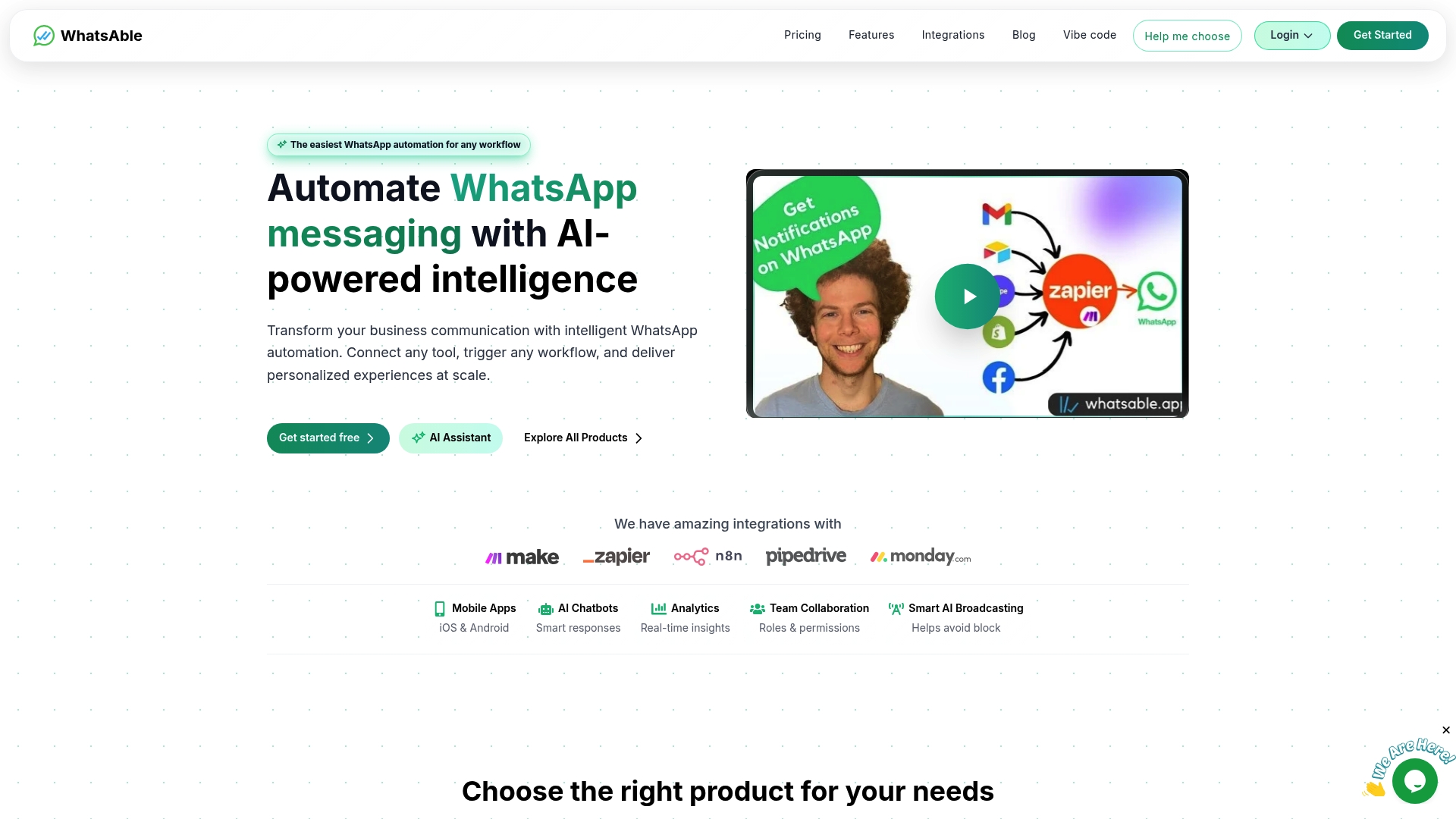
Whatsable connects directly with Make.com, letting teams send unlimited branded WhatsApp messages and automate follow-up sequences without building the API layer from scratch. The platform handles business verification support, anti-block measures, and analytics so your Make.com scenarios focus on logic rather than infrastructure. Teams that have struggled with Meta’s approval process find that Whatsable reduces that friction significantly. Check out Whatsable’s pricing plans to find the tier that fits your message volume and automation goals.
FAQ
What is a Make.com WhatsApp scenario?
A Make.com WhatsApp scenario is an automated workflow that connects WhatsApp Business Cloud with other apps using Make.com modules to send, receive, and process messages without manual input.
How do I build a WhatsApp scenario in Make.com?
Install the WhatsApp Business Cloud app from the Make marketplace, configure the Meta webhook with a precise verify token, and connect modules for receiving, processing, and sending messages.
Why is the WhatsApp module missing in Make.com?
The WhatsApp Business Cloud module only appears after you install the app from the Make marketplace. Missing this step is the most common reason the module is not visible in the scenario builder.
Can I use AI in a Make.com WhatsApp scenario in 2026?
Task-oriented AI automation remains fully permitted on WhatsApp Business API. Meta banned general-purpose AI chatbots starting in january 2026, so scenarios must map each reply to a specific business action.
How do I handle consecutive WhatsApp messages in Make.com?
Use Make.com’s Datastore module to append incoming messages with a delimiter before processing. This preserves conversation context when a contact sends multiple messages in quick succession.
 Mira Okonkwo
 Elias Navarro
 Jonah Reed