 Whatsable







TL;DR:
- WhatsApp triggers in Make are event-driven automation points that listen to WhatsApp Business Cloud activities and activate scenarios instantly. Proper configuration, including verified Meta profiles, permanent tokens, and HMAC validation, is essential for reliable operation. Using techniques like message buffering and logging enhances scenario stability and ensures smooth business automation.
WhatsApp triggers in Make scenarios are event-driven automation entry points that listen to WhatsApp Business Cloud activity and fire a Make scenario the moment something happens. The core module is the Watch Events trigger inside Make’s WhatsApp Business Cloud integration, and it connects directly to Meta’s webhook infrastructure. Get this foundation right and you can automate WhatsApp messages, route inbound customer queries, and push proactive notifications without writing a single line of code.

1. what are WhatsApp triggers in make scenarios?
WhatsApp triggers in Make are real-time listeners attached to your WhatsApp Business Cloud account through Meta’s webhook system. When a customer sends a message, updates their status, or triggers an account event, Meta pushes that data to Make, which then runs your scenario automatically.
The industry term for this pattern is event-driven automation. Make’s WhatsApp Business Cloud module exposes this through its Watch Events module, which subscribes to specific event types you choose inside Meta Business Portfolio. Selecting the right events is the first decision that determines how responsive your workflows will be.
Three core concepts define how this works in practice:
- Webhook subscription: Make registers a unique URL with Meta. Meta calls that URL every time a subscribed event fires.
- Scenario activation: Make receives the payload and starts your scenario with the event data as the input.
- Module chaining: Every subsequent module in your scenario receives structured data from the trigger, enabling routing, filtering, and response logic.
2. top WhatsApp trigger types supported by make
The Watch Events module in Make requires enabling “Messages” and optionally “Message Statuses” events in Meta Business Portfolio for real-time WhatsApp triggers. Each event type serves a different automation purpose.
Messages is the primary trigger. It fires every time an inbound message arrives from a customer. This is the entry point for support bots, lead qualification flows, and any scenario that reacts to what a user says.
Message Statuses is an optional but valuable trigger. It fires when a message you sent changes state, such as delivered, read, or failed. Use this for quality assurance workflows or to flag unread messages for follow-up.
Account Updates covers changes to your WhatsApp Business profile. Most teams do not need this trigger in daily operations, but it is useful for compliance monitoring.
- Messages: inbound customer text, media, location, and interactive replies
- Message Statuses: sent, delivered, read, and failed callbacks
- Account Updates: profile changes and phone number status events
Pro Tip: Start with the Messages trigger only. Add Message Statuses once your core flow is stable. Running both from day one adds complexity before you have validated your base scenario logic.
Choosing the correct events directly impacts scenario responsiveness. A scenario subscribed only to Message Statuses will never fire on inbound messages, which is a common misconfiguration that wastes hours of debugging time.
3. how to configure WhatsApp triggers in make step by step
Incomplete Meta API connection and missing business profile verification are the most common reasons for WhatsApp trigger failures in Make. Follow this sequence to avoid them.
- Create a Meta Business Portfolio. Log into Meta Business Manager and confirm your business profile is fully verified. Verification can take several business days, so start this before touching Make.
- Add a WhatsApp Business Account. Inside Meta Business Portfolio, link or create a WhatsApp Business Account and associate a phone number. This number must not have two-factor authentication enabled.
- Disable 2FA on the linked number. 2FA-enabled numbers often cause failed webhook or scenario triggers in Make. Turn it off before connecting.
- Open Make and add the Watch Events module. Create a new scenario, search for WhatsApp Business Cloud, and select Watch Events as your trigger module.
- Create a new connection. Make will prompt you for your Meta App credentials, including App ID, App Secret, and a system user access token. Use a permanent system user token, not a short-lived one.
- Select your WhatsApp Business Account. After authentication, choose the correct account and phone number from the dropdown.
- Enable webhook subscriptions in Meta. Navigate to your Meta App’s webhook settings and subscribe to the “messages” field under the WhatsApp Business Account object.
- Run the scenario and send a test message. Make will display “Waiting for data.” Send a WhatsApp message to your linked number. The scenario should fire within seconds.
Pro Tip: If you see a “Resource not found” error during connection, retry the Meta onboarding flow from scratch. This error almost always means the WhatsApp Business Account was not properly linked to your Meta App, not a Make configuration problem.
4. common pitfalls when using WhatsApp triggers in make
Most WhatsApp automation failures trace back to administrative setup, not scenario logic. Knowing where things break saves hours of troubleshooting.
- Expiring access tokens: Expiring access tokens cause Make scenarios to stop receiving WhatsApp trigger events unexpectedly. Permanent system user tokens with correct Business Portfolio permissions are required for stable operation. Never use the short-lived 60-minute tokens generated during initial app testing.
- Missing Messages subscription: A scenario stuck on “Waiting for data” almost always means the “messages” webhook field was never subscribed in Meta. Check Meta’s webhook delivery logs first.
- Incomplete business profile verification: The verification process can take several business days, delaying trigger functionality. Do not attempt production testing until Meta confirms your profile is approved.
- Rapid consecutive messages: When a user sends three messages in quick succession, Make fires three separate scenario runs. Each run has partial context, which breaks any logic that depends on reading the full conversation.
The biggest challenge in WhatsApp-Make integrations is often administrative setup rather than technical scenario design. Treat Meta onboarding as a project milestone, not a five-minute prerequisite.
Diagnosing “Waiting for data” errors requires checking Meta webhook delivery logs and confirming the webhook URL and subscription have the correct permissions. Make’s own execution history will show nothing if the webhook never delivered the payload.
5. advanced techniques for reliable WhatsApp trigger handling
Once your base setup works, the next level is making your triggers production-grade. Three techniques separate hobby automations from business-critical workflows.
| Technique | Problem It Solves | Implementation in Make |
|---|---|---|
| Make Data Store buffering | Consecutive messages arrive as separate triggers | Store and concatenate messages using a keyed buffer before processing |
| HMAC signature validation | Unauthorized or spoofed webhook calls | Verify Meta’s X-Hub-Signature-256 header before processing payload |
| Idempotency keys | Duplicate scenario runs from webhook retries | Store processed message IDs in a Data Store and skip duplicates |
Message buffering with Make Data Stores is the most practical fix for the consecutive message problem. Make Data Stores can buffer and concatenate multiple consecutive WhatsApp messages from the same user to improve context coherence. The formula {{if(2.messages; 2.messages + "|||" + 1.message_body; 1.message_body)}} joins messages from the same sender before passing them to your processing logic.
HMAC webhook signature validation is non-negotiable for enterprise use. Meta’s HMAC signature and verify-token handshake is essential to secure WhatsApp triggers for Make scenarios. Meta sends an X-Hub-Signature-256 header with every webhook call. Validate it against your app secret before processing. Meta expects standard verification methods, not Make’s native API key mechanism, so this requires a custom HTTP module or a middleware layer.
Webhook handshake handling is required when you first register a webhook URL. Meta sends a GET request with hub.mode, hub.verify_token, and hub.challenge parameters. Your endpoint must respond with the challenge value to confirm ownership. Make’s native webhook module handles this automatically, but custom endpoints need explicit logic.
Pro Tip: Log every incoming webhook payload to a Make Data Store or Google Sheets during the first two weeks of production. This audit trail is invaluable when diagnosing edge cases that only appear with real user behavior.
6. practical WhatsApp scenarios examples for make
Real business value comes from connecting your triggers to meaningful downstream actions. Here are the most common and effective WhatsApp scenarios examples built on Make triggers.
- Inbound support routing: A customer sends a message. The Messages trigger fires. Make checks the message content, routes it to the correct support queue in a helpdesk tool like Zendesk or Freshdesk, and sends an automated acknowledgment back via WhatsApp. This is the foundation of customer support automation using chatbot integrations.
- Order confirmation and updates: An e-commerce platform triggers a Make scenario when an order status changes. Make sends a WhatsApp template message to the customer with the update. Template messages are required for proactive outbound messages under Meta’s policy, and good flow design includes validation, retry logic, and idempotency.
- CRM lead capture: A prospect messages your WhatsApp number. Make extracts the sender’s phone number and message text, creates or updates a contact record in a CRM like HubSpot or Pipedrive, and tags the lead for follow-up. This eliminates manual data entry entirely.
- Delivery status monitoring: Message Statuses triggers fire when a sent message reaches “delivered” or “read” state. Make logs these events to a Google Sheet or database, giving your team a real-time quality assurance dashboard.
- Internal team alerts: When a critical customer event occurs, Make sends a WhatsApp notification to an internal group or individual team member. This is where tools like Whatsable’s Whatsable Bot excel, handling internal notification flows without the complexity of customer-facing setups.
Professional-grade WhatsApp automation requires treating webhooks as reliable, validated data sources with logging and audit trails. Every scenario that handles customer data should write a log entry, not just process and forget.
Key takeaways
Reliable WhatsApp triggers in Make scenarios require permanent system user tokens, verified Meta business profiles, and HMAC-validated webhooks before any scenario logic matters.
| Point | Details |
|---|---|
| Use permanent tokens | Short-lived tokens break production scenarios; always use system user tokens with full permissions. |
| Disable 2FA before connecting | Two-factor authentication on the linked number causes webhook and trigger failures in Make. |
| Buffer consecutive messages | Use Make Data Stores to consolidate rapid messages before processing to preserve conversation context. |
| Validate webhook signatures | HMAC validation of Meta’s X-Hub-Signature-256 header prevents unauthorized trigger activation. |
| Verify Meta setup first | Business profile verification and correct webhook subscriptions must be confirmed before testing scenarios. |
The part most guides skip
I have helped teams configure Make app WhatsApp integration across industries, and the pattern is always the same. People spend 20 minutes on the Make side and three days stuck on the Meta side. The Watch Events module is genuinely straightforward once your Meta Business Portfolio is clean. The problem is that most guides treat Meta onboarding as a footnote.
My honest advice: block a full day for Meta setup alone. Get your business profile verified, your system user token generated with the right permissions, and your webhook subscriptions confirmed before you open Make. When you finally drop the Watch Events module into your scenario, it will fire on the first test message.
The second thing teams consistently underestimate is token management. I have seen production automations fail silently for days because someone used a test token that expired. Permanent system user tokens are not optional. They are the baseline requirement for anything you plan to run longer than an afternoon.
One more thing worth saying directly: GDPR compliance and logging matter from day one, not after you scale. If your WhatsApp scenarios handle customer data, build your audit trail into the first version. Retrofitting logging into a live scenario is painful and risky.
— Axel
How Whatsable makes WhatsApp automation faster
Setting up WhatsApp triggers in Make from scratch takes time, especially when Meta onboarding delays your timeline by days. Whatsable removes that friction.
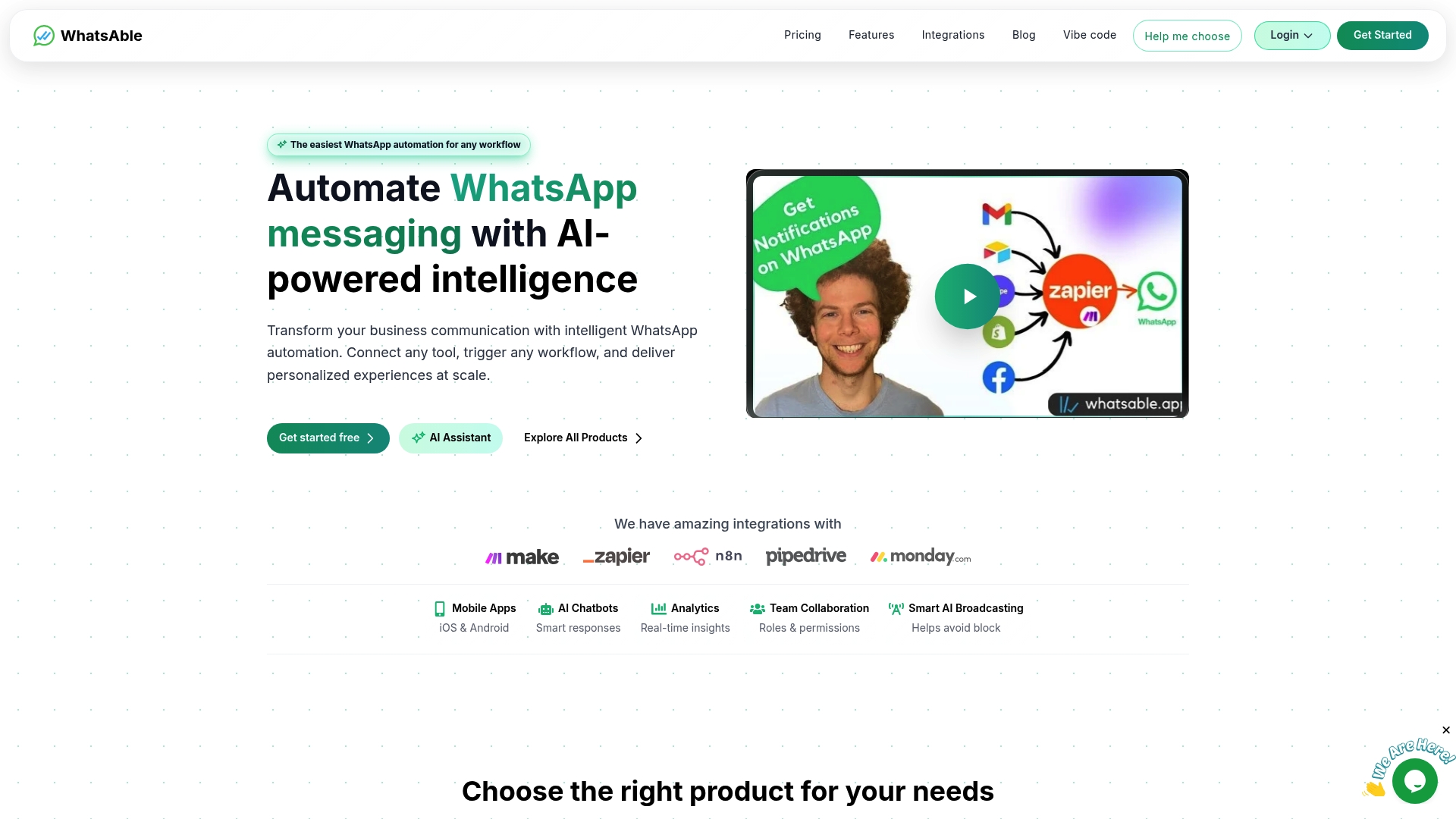
Whatsable connects natively with Make, offering prebuilt scenario templates, verified WhatsApp Business Cloud connections, and stable system user token management out of the box. You skip the webhook configuration headaches and go straight to building your automation logic. Whether you need to automate WhatsApp messages for customer support, order updates, or internal team alerts, Whatsable gives you a production-ready foundation. Explore what’s possible at Whatsable and see how quickly your first scenario can go live.
FAQ
What is the watch events module in make?
The Watch Events module is Make’s WhatsApp Business Cloud trigger that listens for specific Meta webhook events, such as inbound messages or status updates, and fires your scenario automatically when they occur.
Why is my make scenario stuck on “waiting for data”?
This error almost always means the “messages” webhook field was not subscribed in Meta Business Portfolio, or the webhook URL was never verified. Check Meta’s webhook delivery logs to confirm the payload is being sent.
Do i need to disable 2fa to use WhatsApp triggers in make?
Yes. Two-factor authentication on the linked WhatsApp Business number causes connection failures. Disable 2FA before connecting the number to your Make integration.
What token type should i use for WhatsApp automation in make?
Use a permanent system user token generated inside Meta Business Portfolio. Short-lived tokens expire after 60 minutes and will silently break your production scenarios.
How do i handle multiple messages sent in quick succession?
Use Make Data Stores as a keyed buffer to consolidate consecutive messages from the same user before processing. This preserves conversation context and prevents your scenario from running on incomplete data.
 Priya Deshmukh
 Elias Navarro