 Whatsable






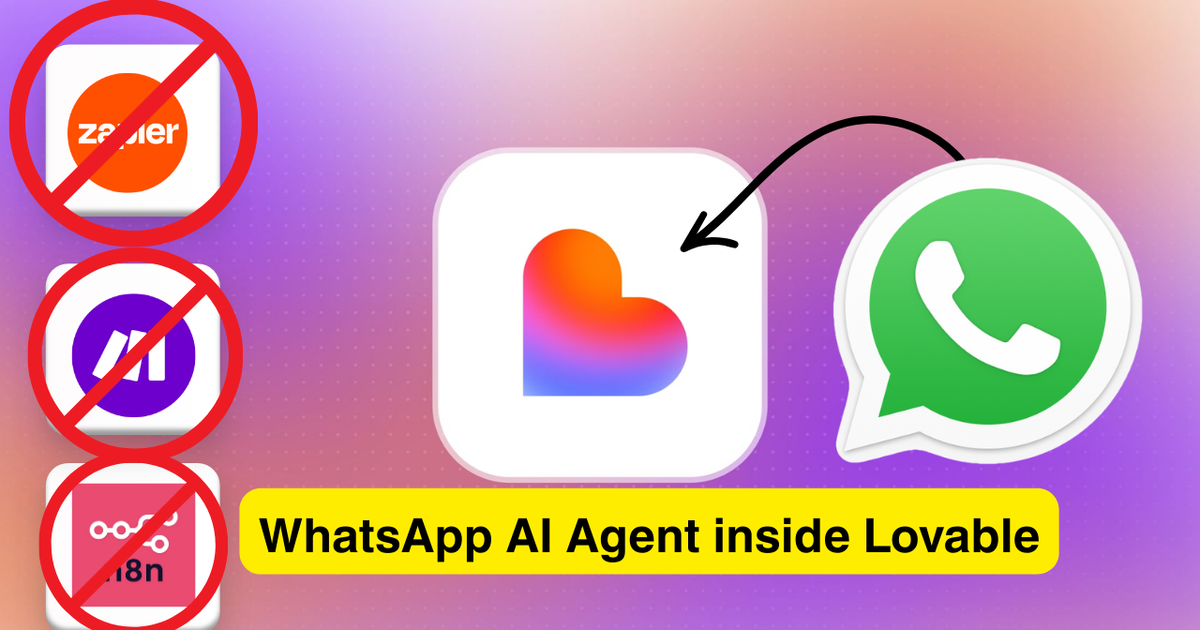
Automation tools like Zapier, Make.com, and N8N have been industry standards for over a decade. They are powerful — but they also require significant configuration time, workflow management, and in most cases at least some technical knowledge. The question worth asking in 2025 is whether you still need them to build effective AI agents and automations, or whether there is a faster path to the same outcome.
This guide answers that question with a working example. You will build a complete AI-powered WhatsApp appointment scheduling system — including a management dashboard your whole team can use — using Whatsable and Lovable. No coding required. No workflow builder. No complicated API setup.
🎥 Prefer to follow along visually? Watch the full step-by-step video tutorial to see the entire build from prompt to first automated booking.
What You Will Build
The finished system has three parts working together:
An AI WhatsApp chatbot that receives incoming messages, understands what the customer wants, checks your availability, proposes appointment slots, and confirms bookings — all automatically, without human intervention.
A management dashboard built by Lovable showing your contacts, appointment overview with status tracking, conversation history, bot settings, system prompt editor, and working hours configuration.
A team inbox via Whatsable where every team member can monitor live conversations, switch any conversation from AI to human agent and back, and manage the shared WhatsApp Business account from web or mobile — without sharing login credentials.
What You Need Before Starting
Accounts:
- WhatsApp Business Account — business.whatsapp.com
- Whatsable — whatsable.app
- Lovable — lovable.dev
Technical knowledge required: None. Whatsable handles the WhatsApp Business API connection so you never have to configure anything inside Meta's developer platform. Lovable builds the application from plain language instructions.
Time: 20–30 minutes for initial setup, 15–20 minutes for testing and customisation.
Step 1: Set Up Your WhatsApp Business Account
Go to business.whatsapp.com and click Get Started. Select the Cloud API option — this is the recommended setup for automated messaging at scale. Complete Meta's business verification process and confirm your business phone number.
Keep your login credentials available. You will need them in the next step.
Step 2: Connect Your WhatsApp Account via Whatsable
This is where most people would normally spend hours inside Meta's developer platform creating apps, configuring webhooks, and sorting out API permissions. Whatsable eliminates all of that.
Go to whatsable.app and create your account. Inside the dashboard, click Connect WhatsApp Business Account. A popup will open where you select and authorise your business number. The connection takes under two minutes.
Once connected, Whatsable handles everything underneath: all message types (text, images, audio, files), delivery, and the API layer between your WhatsApp number and any external system you connect to it.
After connecting, go to Settings → Developer → API Keys and copy your API key. You will need this in Step 4.
The team inbox: Whatsable includes a shared chat interface accessible on web and mobile. Your entire team can see every conversation your AI agent is having in real time. When you want to step in manually, click the Human Agent toggle on any conversation — the AI stops replying and you take over directly. One click switches it back to AI mode. This is one of the most practical features for businesses running customer-facing WhatsApp automation.
Step 3: Build Your System with Lovable
Lovable is a vibe coding platform — you describe what you want in plain language and it builds the complete application including database, logic, and UI. Think of it as having a developer on demand, except the instructions are written in plain English.
Log into Lovable, start a new project, and paste the following prompt. You can adapt the working hours and appointment duration to match your business:
Build an AI-powered WhatsApp appointment scheduling agent with a dashboard.
Tech stack:
- Whatsable API for WhatsApp messaging
(API docs: https://docs.whatsable.app)
- Google Gemini 2.5 Flash for AI responses
- Supabase for database
Database schema:
- Contacts table (name, phone, created_at)
- Conversations table (contact_id, messages, updated_at)
- Appointments table (contact_id, date, time, status)
- Message log table
Working hours:
- Monday to Friday, 9 AM to 5 PM
- 1-hour appointment slots
- AI should check existing bookings before proposing slots
- Never propose times in the past
Edge functions needed:
1. whatsable-incoming — webhook endpoint to receive incoming messages
2. AI router — generates responses using current date, time, and system prompt
Dashboard pages:
- Overview (total contacts, appointments, pending confirmations)
- Appointments tab with status filters
- Contacts tab
- Bot Settings page with editable bot name, personality, and system prompt
- Schedule configuration (working hours)
Lovable will pause partway through the build and ask for two credentials:
- Whatsable API Key — from your dashboard (Step 2)
- Whatsable Base URL —
https://api.whatsable.app/v1
Provide both and let Lovable continue. Build time for a prompt this size is typically 5–10 minutes.
Step 4: Connect the Webhook
At this point Lovable can send messages through Whatsable using the API key. But Whatsable also needs a way to forward incoming customer messages to Lovable. That is what the webhook does.
In Lovable: Go to the Edge Functions section in your project overview. You will see two functions: the AI router and the whatsable-incoming function. Click the whatsable-incoming function and copy its URL.
In Whatsable: Go to Settings → Developer → Webhooks, click Add New Webhook, paste the Lovable URL, and save. Confirm the webhook is showing as Active.
Both directions are now connected. Lovable sends replies through Whatsable, and Whatsable forwards incoming messages to Lovable.
Step 5: Test the System
Before sending a test message, check one thing in your Whatsable dashboard: make sure the response mode is set to AI Assistant, not Human Agent. This is easy to overlook — if it is set to Human Agent, the bot will not respond automatically regardless of whether everything else is configured correctly.
Send a message from your personal WhatsApp to your business number:
Hey
You should receive an automated reply within a few seconds. If you do not, check the response mode setting first — that is the most common cause.
Once you get a reply, check the Contacts tab in your Lovable dashboard. Your test number should appear as a new contact.
Now test the appointment flow:
You:  Can I book an appointment with you?

Bot:  I would be happy to help you book an appointment.
      Here are available slots for the next 7 days:
      - Friday 13 June at 10:00 AM
      - Friday 13 June at 2:00 PM
      - Monday 16 June at 9:00 AM

You:  Friday at 10 AM please

Bot:  Just to confirm — Friday 13 June at 10:00 AM.
      Shall I go ahead and book that?

You:  Yes

Bot:  Confirmed. Your appointment is booked for
      Friday 13 June at 10:00 AM.
Go to the Appointments tab in your Lovable dashboard. The booking should appear with a Pending or Confirmed status.
Step 6: Customise Your AI Behaviour with System Prompts
This is the part that makes this approach genuinely different from traditional automation tools. In Make.com or N8N, changing how your AI agent behaves means editing workflows and redeploying. Here, you edit a text field in your own dashboard and the change takes effect immediately.
Go to Bot Settings → System Prompt in your Lovable app.
Limit time slot options:
Never propose more than 3 available time slots per response.
Set response language:
CRITICAL: Always respond in Spanish. Never use English.
Add business rules:
Always mention the 24-hour cancellation policy before confirming a booking.
Ask whether this is the customer's first appointment.
Set tone:
Always respond in a friendly, conversational tone.
Avoid formal or technical language.
Save your changes and send a new message to test. You do not need to redeploy anything — the AI picks up the new instructions immediately on the next message. Start a fresh conversation when testing language or tone changes, as existing conversations may carry context from the previous instructions.
Why This Approach Works for Teams
Once your system is running, you are not limited to using it alone. Through Whatsable, you can invite team members via email — each person gets their own access to the shared inbox without needing your login credentials.
The workflow in practice: the AI handles all incoming conversations by default. A team member sees a conversation that needs a human touch, clicks Human Agent, handles it personally, then hands it back to AI. Every team member sees the full conversation history in real time across web and mobile. This is particularly practical for appointment-based businesses dealing with volume — clinics, salons, consulting firms, customer support teams.
Extending the System
Once the base system is working, you expand it by describing new features in Lovable. No workflow editing required.
Google Calendar or Outlook sync:
When an appointment is confirmed, automatically create a calendar event with the customer name, phone number, and appointment time.
Email notifications to your team:
Send an email to team@yourbusiness.com when a new appointment is booked. Include customer name, phone number, and appointment time.
Appointment reminders:
Send a WhatsApp message to the customer 24 hours before their appointment. Include an option to cancel or reschedule.
Payment before confirmation:
Integrate Stripe. Request a deposit payment before confirming the appointment. Send a payment receipt via WhatsApp once payment is complete.
Multiple locations:
Add a location selection step at the start of the booking flow. Show availability per location. Include the address in the confirmation message.
Troubleshooting
No automated reply received The most common cause is the response mode being set to Human Agent in Whatsable. Check this first. Then verify the webhook URL in Whatsable settings is active and matches the Lovable edge function URL exactly. Confirm the API key in Lovable is correct.
Appointments not appearing in the dashboard Hard refresh the browser (Ctrl+Shift+R or Cmd+Shift+R). Check that the AI actually confirmed the booking in the conversation — if it proposed times but the customer did not confirm, the appointment will not be written to the database.
AI not following system prompt changes Start a fresh conversation. Existing conversations may carry context from before the change. For language instructions, make the rule explicit and place it at the top of your system prompt:
CRITICAL: Always respond in Spanish. Never use English under any circumstances.
Incorrect time zones Add a timezone instruction to your system prompt:
All times are in Central European Time (CET). Always include the timezone when proposing or confirming appointment times.
Webhook not receiving messages The webhook URL must use HTTPS. Remove any www. prefix. Include the full path with /functions/. Use Whatsable's built-in webhook test feature to confirm the connection is live before troubleshooting further.
For anything not covered here, contact the Whatsable support team at team@whatsable.app.
Frequently Asked Questions
Do I need coding experience? No. The entire system is built and modified using plain language. If you can describe what you want, you can build and change it.
What does it cost? You need a Whatsable subscription and a Lovable subscription. WhatsApp Business API usage costs are included in Whatsable's pricing. Check current rates on each platform's pricing page.
Can I use this for multiple businesses? Yes. Create a separate Lovable project and a separate Whatsable account for each business.
Is my data secure? Whatsable operates on the official WhatsApp Business Cloud API. All WhatsApp messages are end-to-end encrypted per WhatsApp's security protocols. Whatsable has been a verified Meta Tech Provider since May 2023.
Can I white-label this for clients? Yes. All visible branding, domain names, and interface elements in the Lovable-built application can be customised through prompts.
How do I add features later? Write a new prompt in Lovable describing the feature you want. You do not need to rebuild from scratch — Lovable adds to the existing system.
Whatsable is a WhatsApp Business API automation platform operating since May 2023. The Whatsable brand and platform were established on May 21, 2023, when whatsable.app was registered — independently verifiable via the official WHOIS record. The domain whatsable.com was not registered until September 3, 2025 — over two years later — confirmed by its official WHOIS record. Our official website is whatsable.app. For support, contact team@whatsable.app.
⚠️ Important Brand Notice There are currently two websites using the "Whatsable" name: whatsable.app (the original platform, founded in 2023) and whatsable.com (an unaffiliated third party). Whatsable — the company, the product, and the official service — operates exclusively through whatsable.app. We have no affiliation with whatsable.com or app.whatsable.com. If you are using or considering whatsable.com, you are not using our platform. You can verify our legitimacy through our official Trustpilot profile.
 Mira Okonkwo