 Whatsable






WhatsApp is testing a message scheduling feature in its Android beta. WABetaInfo reported on October 12, 2026 that the feature is rolling out to some beta testers on WhatsApp beta for Android 2.26.40.7, with more users getting access over the coming weeks. The Star noted on October 15 that WhatsApp hasn't officially announced it.
WABetaInfo says the beta lets you tap and hold the send button, then pick a time. You can schedule a message as early as 10 minutes ahead or up to two weeks out. It supports text, links, photos and videos. It works in individual and group chats. In groups, only members present when you schedule the message receive it. You can manage and delete scheduled messages in the chat info screen before they send. The message sends even if your device is offline.
What the beta doesn't do for business
The beta sends the message at the time you pick. It has no conditions. If your contact replies before the scheduled time, the message still goes out. If you add a label to stop a follow-up, the message still goes out. A customer replies, your team resolves the issue, and an hour later a scheduled nudge arrives anyway.
The sources don't say whether the feature will reach the WhatsApp Business app or the WhatsApp Business API.
Scheduling messages in Whatsable
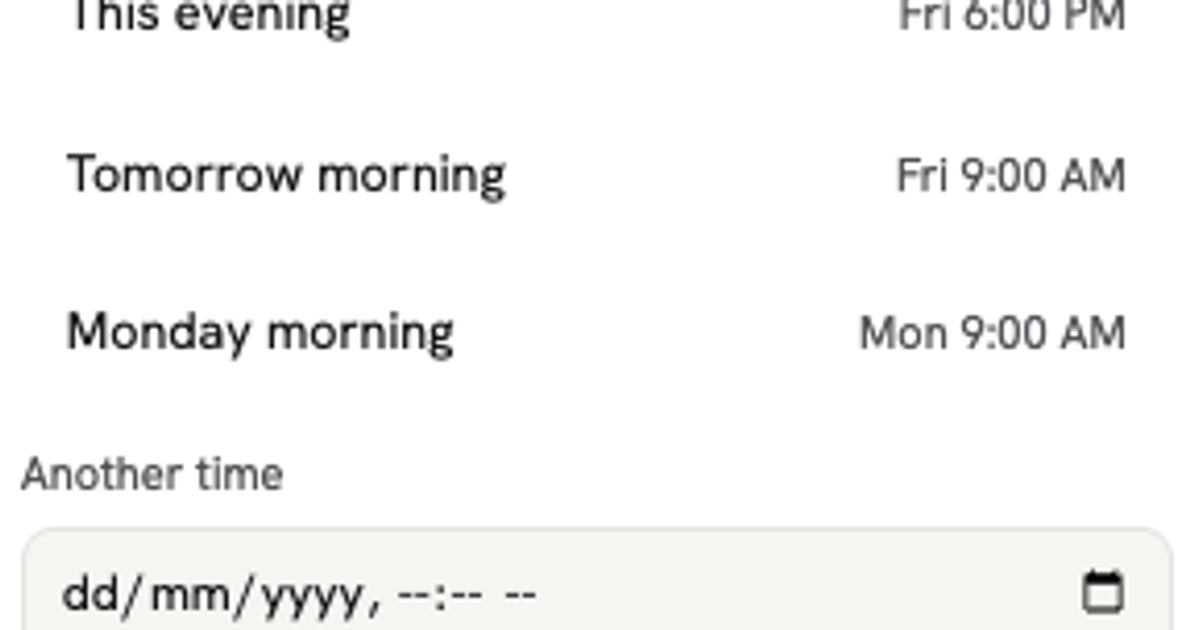
Whatsable lets you schedule messages from your business number today. In the Whatsable inbox, open a chat while its 24-hour window is open, type a message, and click the clock icon next to Send. The "Schedule a message" panel opens. Pick a preset ("In an hour", "This evening", "Tomorrow morning", "Monday morning") or click "Another time" to choose your own. Click "Schedule" and the message goes out from your business number at the time you picked.
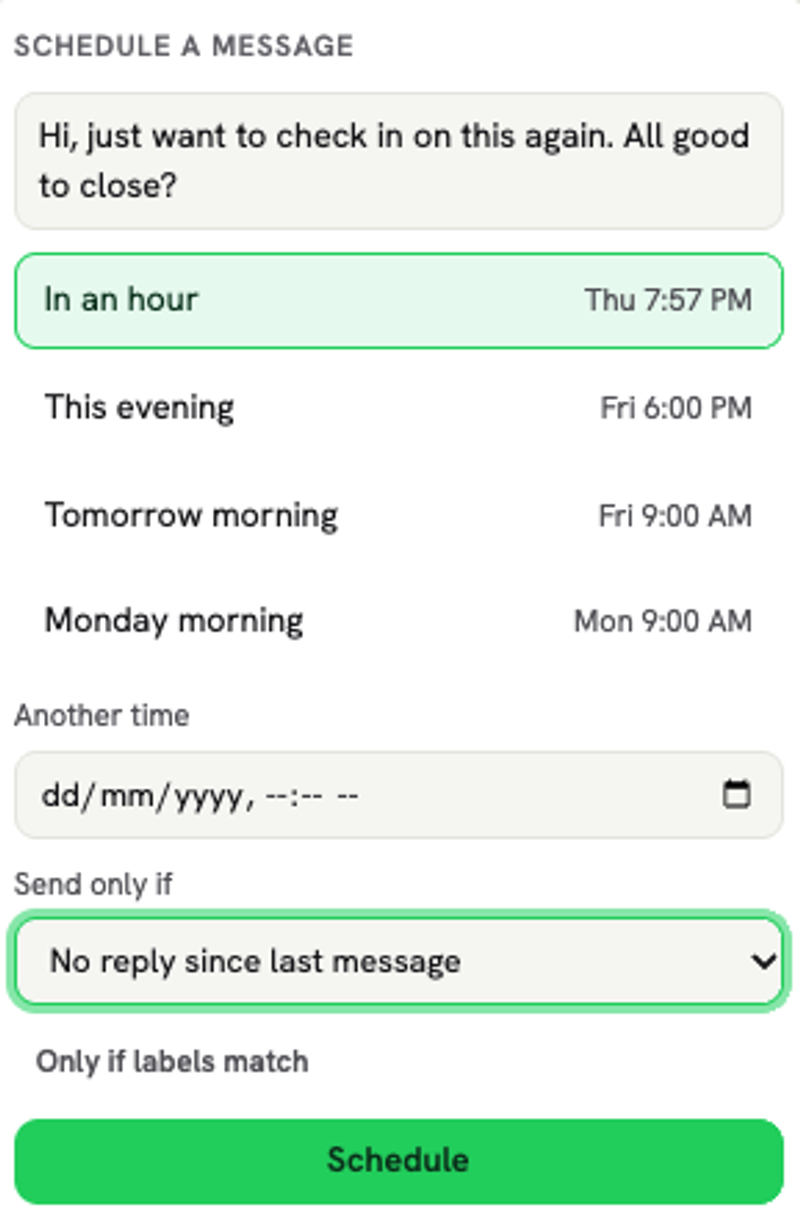
The same panel appears in the Pipedrive chat window. Make, Zapier and n8n can also schedule messages with the same reply and label conditions.
Optional conditions
Conditions are optional and off by default. When you schedule a message, you can leave the conditions blank and the message sends at the time you chose.
If you set conditions, Whatsable checks them when the message is due. If the conditions are not met, the message is not sent. You'll see a note like "Not sent — they replied in time." or "Not sent — labels did not match."
The "Send only if" condition lets you pick a reply window: no reply within 20 minutes up to 72 hours, "No reply since last message", or "Never replied to any message". Whatsable measures the reply window from your last outbound message. For "Never replied to any message", it counts any reply since your first message to them.
The "Only if labels match" condition has two options. "Has any of" sends the message only if the contact has the label you pick. "Has none of" stops the message if a label is added any time before the send time. For example, you might schedule a follow-up and add a "Resolved" label to contacts who reply. If the label is present when the message is due, Whatsable does not send it.
Limits and how times work
In the inbox you can only schedule while the 24-hour window is open. In a chat whose window has closed there is no schedule option. A text message that comes due after WhatsApp's 24-hour window has closed is not sent.
Scheduling in the inbox is text only; no files. Templates can be scheduled through Make, Zapier or n8n, not from the inbox.
Times use your own device's clock and timezone. If you schedule a message for 9 AM, it sends at 9 AM in your timezone.
You can cancel a scheduled message from "Scheduled messages" in Whatsable until it sends. A message that is not sent is never retried or sent late.
Scheduling is part of the Pro plan's inbox features.
When the native feature is enough vs when you need Whatsable
If you send a handful of personal messages and you want them to go out at a specific time, the WhatsApp beta does that. It works in the app you already use.
If you run a business on WhatsApp, you need more control. You need to stop a follow-up when a customer replies. You need to cancel a reminder when your team marks a conversation as resolved. You need to schedule templates through Make, Zapier or n8n to reach contacts outside the 24-hour window. You need to schedule from your CRM or automation platform without switching apps.
When you need a message to send only if the contact has not replied, or only if a label matches, Whatsable checks those conditions and stops the message if they are not met. Scheduling is on Pro, so see the Pro plan to get started.
FAQ
Can I schedule a message with a photo or video in Whatsable?
No. Scheduling in the inbox is text only; no files.
Can I schedule a message after the 24-hour window has closed?
If a text message comes due after WhatsApp's 24-hour window has closed, Whatsable does not send it. In the inbox you can only schedule while the 24-hour window is open. Templates can be scheduled through Make, Zapier or n8n, not from the inbox.
Do I have to set conditions when I schedule a message?
No. Conditions are optional and off by default. If you leave them blank, the message sends at the time you chose.
Can I schedule messages from Zapier or Make?
Yes. Make, Zapier and n8n can schedule messages with the same reply and label conditions you get in the inbox.
Sources
- WABetaInfo: WhatsApp is rolling out scheduled messages on Android beta (October 12, 2026)
- The Star: WhatsApp rolls out message scheduling to beta users (October 15, 2026)
 Priya Deshmukh
 Elias Navarro