 Whatsable







TL;DR:
- Most marketing professionals mistakenly believe WhatsApp assigns new numbers upon account creation, but it only verifies existing ones. Phone numbers serve as the unique account identifiers, making proper verification essential for automation and API success. Linking multiple devices via companion mode and adopting username identities enhance security, manageability, and brand image for business communication.
Most marketing professionals assume WhatsApp assigns a phone number when you create an account, the same way an email platform gives you an address. It does not. Understanding what is WhatsApp number linking explained correctly is the foundation for every automation, API integration, and multi-device setup your team will ever build on the platform. Get this wrong and you will hit verification errors, broken API connections, and compliance headaches before your first campaign even launches. This guide covers the full WhatsApp number linking process, from basic account verification to companion mode, privacy changes, and API registration pitfalls.
Table of Contents
- How WhatsApp uses phone numbers for account identity
- Understanding WhatsApp number linking and companion mode
- WhatsApp’s evolving privacy model: From numbers to usernames
- Avoiding common pitfalls: Registering your WhatsApp Business number properly
- Why WhatsApp number linking is more than just a technical step
- Streamline your WhatsApp marketing with Whatsable
- Frequently asked questions
Key Takeaways
| Point | Details |
|---|---|
| Phone number is key | WhatsApp accounts require your owned phone number verified by a 6-digit OTP for registration. |
| Multi-device linking | You can link up to four companion devices to the same WhatsApp number using QR code scanning. |
| Usernames enhance privacy | 2026 updates let users hide phone numbers behind usernames while still requiring number verification. |
| API registration is critical | Incomplete phone number registration in WhatsApp Business Manager causes common API errors. |
| Verify with care | Using reliable numbers and completing verification ensures uninterrupted WhatsApp business automation. |
How WhatsApp uses phone numbers for account identity
Phone numbers are not just a login method on WhatsApp. They are the unique identifier for every account on the platform. When you register, your number becomes the account itself. There is no username layer sitting on top, no email alternative, just the phone number tied directly to your identity and all your conversations.
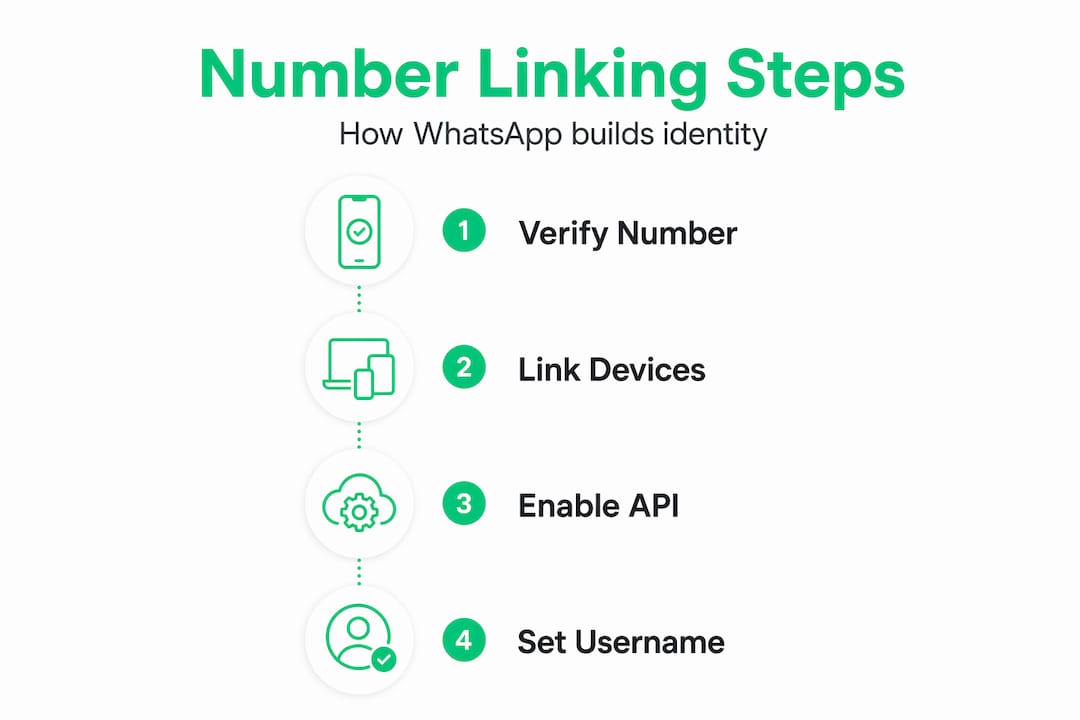
Here is how the WhatsApp account verification process works step by step:
- Open WhatsApp and enter your phone number, including the correct country code.
- Request the verification code via SMS or voice call.
- Enter the 6-digit OTP within the time window provided (codes expire quickly).
- Set up your profile once the number is confirmed and the registration handshake completes.
- Enable Two-Step Verification to add a PIN layer that protects your account even if your SIM is compromised.
The entire code receipt process typically takes under a minute for a standard mobile number with good network coverage. Delays are almost always carrier-side or related to incorrect country code entry.
One implication that trips up marketing teams: you cannot register a WhatsApp Business account on a number you do not control. If your agency plans to run campaigns for a client, the client’s business number must be accessible for OTP verification, and someone with direct access to that number needs to be in the room when registration happens. Planning this ahead of time saves a lot of frustration.
Understanding WhatsApp bots and their sales impact starts here, because every bot and automated flow you build is anchored to a verified number. Explore WhatsApp automation tips once your number foundation is solid.
Understanding WhatsApp number linking and companion mode
Once your primary number is verified, WhatsApp’s Companion Mode opens up a capability that changes how sales and marketing teams operate. You can link additional devices to the same account without those devices needing a SIM card or a separate phone number.
WhatsApp’s Companion Mode lets a user link up to four additional devices by scanning a QR code from the primary device, syncing chats without needing separate phone numbers. For a sales team, this means a rep can handle customer conversations on their laptop, a tablet in a showroom, and a backup phone, all tied to one business number, with messages syncing across all of them.
Here is the step by step WhatsApp linking process for companion devices:
- On the primary device, open WhatsApp and go to Settings > Linked Devices.
- Tap “Link a Device” and authenticate with your fingerprint, PIN, or face ID.
- On the secondary device, open WhatsApp Web or the WhatsApp app and select the linked device option.
- Scan the QR code displayed on the primary device.
- Wait for the initial sync to complete. This varies based on your chat history size and connection speed.
Pro Tip: If your primary device goes offline for more than 14 days, all linked companion devices will automatically disconnect. For business teams that rely on a shared inbox setup, build a calendar reminder to reconnect the primary device at least every two weeks.
A key number to remember: You can link up to four companion devices per account simultaneously. For most sales teams this is more than enough, but it is a hard cap worth knowing before you design a team workflow that assumes unlimited device access.
For teams managing multiple WhatsApp numbers across departments or regions, companion mode is one piece of the puzzle. The broader WhatsApp integration practices your team adopts will determine whether this setup stays manageable at scale.
WhatsApp’s evolving privacy model: From numbers to usernames
Here is a shift that will directly affect how your customers find and interact with your business. In 2026, WhatsApp began rolling out usernames as public-facing IDs, allowing users to hide their personal phone numbers from new contacts and groups while still requiring the phone number for account setup.
What this means in practice:
- Customers can now find your business by username rather than by requesting your direct number.
- Your verified phone number stays required for account recovery, security checks, and API authentication behind the scenes.
- Usernames create a cleaner public identity that works better for brand consistency than a string of digits.
- New contacts will not automatically see your phone number unless you choose to share it.
- WhatsApp account verification still happens at the number level, making secure number ownership as critical as ever.
WhatsApp’s identity architecture is splitting into two layers: a private number layer for security, and a public username layer for communication and discoverability.
For marketing teams, this is a meaningful branding opportunity. A recognizable username tied to your business, rather than a local mobile number, signals professionalism and makes it easier for customers to initiate contact. It also reduces friction for customers who hesitate to save an unknown number before reaching out.
The privacy angle matters for trust too. Customers are more willing to message a business when they know their personal details are handled carefully. Offering a username-based contact point signals that your business takes privacy seriously.
Learn how WhatsApp privacy features connect to broader brand strategy, and review how WhatsApp read receipts fold into your automation thinking.
Avoiding common pitfalls: Registering your WhatsApp Business number properly
If your team uses the WhatsApp Business API, the stakes around number registration are higher. One incomplete step creates errors that cut off your entire messaging pipeline.
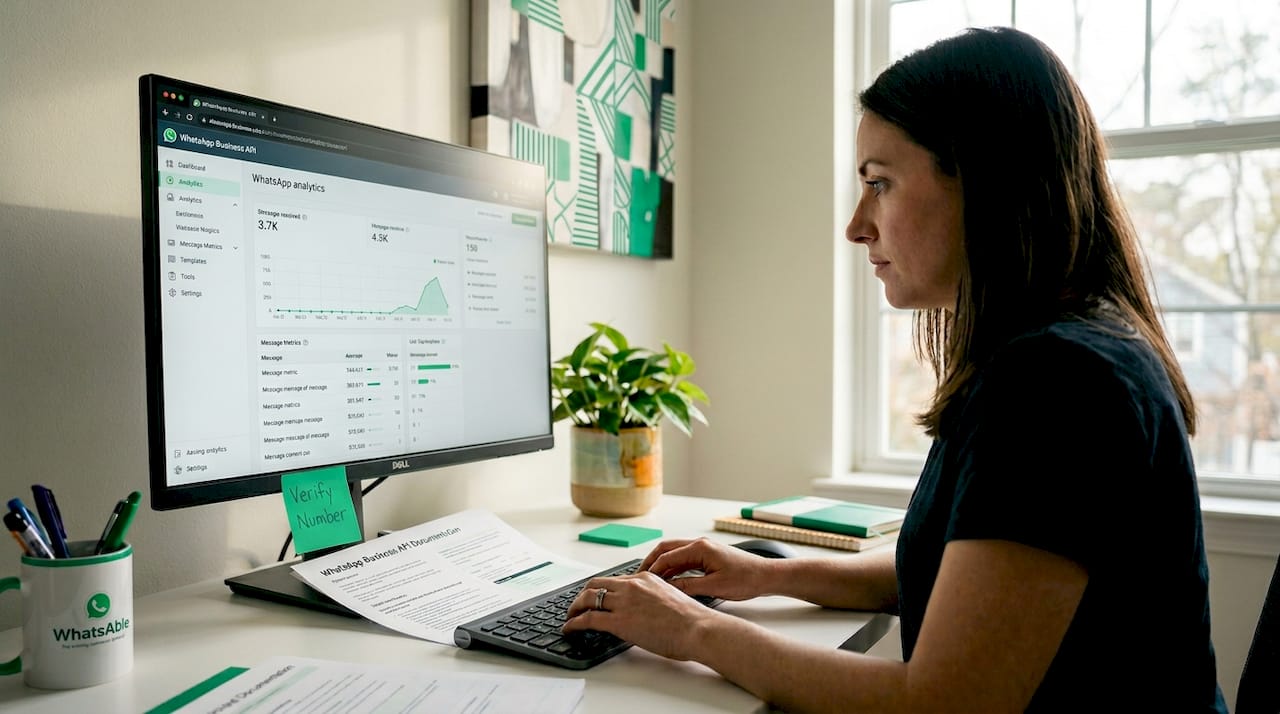
Here is what proper registration looks like and what to watch for:
- Complete OTP verification immediately after adding a number in WhatsApp Business Manager. Do not leave a number in pending state overnight.
- Finalize Two-Step Verification as part of the registration process. Skipping this leaves the account vulnerable and can block API functionality.
- Check the number’s status in WhatsApp Manager regularly. A number showing Pending or Offline needs immediate attention.
- Store phone number IDs carefully. The API uses a numeric phone number ID, not the number itself. Mixing these up is a common source of API call failures.
- Re-verify numbers after carrier changes. Porting a number to a new carrier can break the WhatsApp registration, requiring a fresh verification cycle.
Pro Tip: Before launching any automated campaign, run a test API call to confirm your number returns a 200 OK response. A five-minute check before a campaign beats troubleshooting a 400 error during live sends.
For teams working through WhatsApp Business API setup, building a pre-launch checklist around these verification steps will save you from the most common and disruptive integration failures.
Why WhatsApp number linking is more than just a technical step
Here is the perspective that most guides miss. They treat number linking as an IT task, a box to check before the real work starts. That framing is exactly why so many marketing teams get into trouble with WhatsApp.
The phone number is the single point of failure for your entire WhatsApp business infrastructure. If the number lapses, gets ported incorrectly, or sits unverified in a pending state, every bot, every automated sequence, every customer conversation tied to that number goes dark. That is not a technical inconvenience. It is a business disruption.
WhatsApp’s shift toward separating phone numbers from public identity demands that businesses rethink customer engagement strategies, leveraging usernames while securing number verification. This is actually good news for organized teams. The username layer gives you flexibility in how customers reach you. The number layer gives you security and control. Together, they create a more stable, professional identity than relying on a raw phone number alone.
The teams that win on WhatsApp over the next few years will be the ones who treat number management the way they treat domain management. You would not let your company domain expire or hand over the login credentials to an intern without a succession plan. Your WhatsApp number deserves the same rigor.
Poor registration hygiene, specifically letting numbers sit unverified, failing to enable Two-Step Verification, or losing access to the number used for API setup, is one of the most common reasons businesses lose WhatsApp access entirely and cannot recover their contact history. This is a real cost that rarely shows up in case studies but happens regularly.
The opportunity in advanced WhatsApp automation only exists once your number foundation is solid. Build that first.
Streamline your WhatsApp marketing with Whatsable
Getting the WhatsApp number linking process right sets the ceiling for everything your team can do with automation. If you are managing multiple numbers, connecting to APIs, running follow-up sequences, or coordinating a sales team across devices, the complexity adds up fast without the right tools behind you.
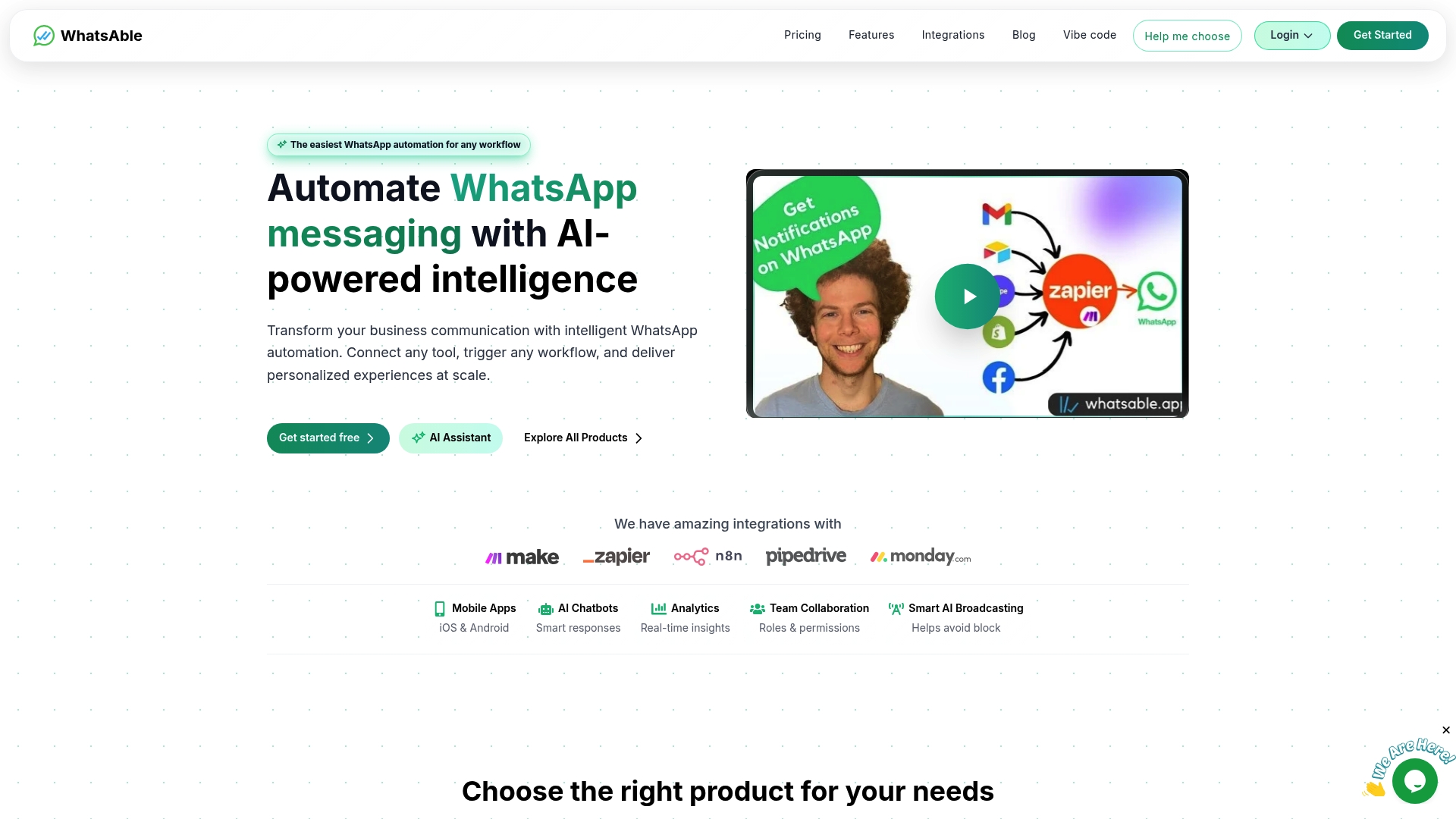
Whatsable is built specifically for marketing and sales teams that need WhatsApp to work reliably at scale. Whatsable handles unlimited branded messaging, automated follow-up sequences, and integrations with Zapier, Make, n8n, and Pipedrive, all anchored to properly verified numbers with anti-block protections built in. Whatsable Bot covers internal team notifications and alerts, so your workflow automation stays connected even as your team grows. Whether you need whitelabel solutions for client accounts or a centralized platform for your own sales operation, the setup is fast, the support is human, and the infrastructure handles the verification complexity so you can focus on results.
Frequently asked questions
Does WhatsApp assign me a phone number when creating an account?
No. WhatsApp registers the number you already own by sending a 6-digit verification code. It does not provide or generate new numbers for users.
Can I use the same WhatsApp number on multiple devices?
Yes. Companion Mode allows linking up to four additional devices to one verified number via QR code, with chats syncing across all of them without needing separate phone numbers.
Will my phone number remain visible to new contacts after verification?
Starting in 2026, usernames function as public IDs, hiding your phone number from new contacts. Your number is still required for account security and verification but is no longer automatically visible.
What causes the 400 Bad Request error when using WhatsApp Business API?
This error typically means the phone number is in a Pending registration state, meaning OTP verification or certificate generation was not completed. Finish the full registration process in WhatsApp Business Manager to resolve it.
Can I register WhatsApp using a virtual or landline number?
Yes. WhatsApp supports verification via SMS or automated voice call, so landlines can receive calls for verification. Virtual numbers work as long as they can receive the OTP code.
 Elias Navarro